Templating in Angular: ng-template Use Cases
Published on: 23 May 2023
ng-template is a powerful feature in Angular that simplifies the development process by allowing developers to define and reuse templates. In this blog post, we will explore various use cases of ng-template, highlighting how it enhances code reusability and simplifies the creation of dynamic and customizable components in Angular applications.

If you are not aware of ng-template then read this blog on Angular University. Also, we will use $implicit in the ng-template context throughout the examples.
Use Cases of ng-template
- Reusable components
- Conditional rendering
- Dynamic content
- Customizing components
In this blog post, we will look into each of these use cases with simple examples to help you grasp their concepts and practical implementation.
1. Reusable Components
One of the most common use cases of ng-template is creating reusable components. With ng-template, developers can create a template that can be used in multiple components.
Consider a card component that is used to display information consistently across various sections of an application. The header of the card remains consistent while the content (text or images) can be customized.
Create a ReusableCardComponent where data can be provided using a model and a custom ng-template can be provided as content.
ReusableCardComponent
@Component({
  selector: 'app-reusable-card',
  templateUrl: './reusable-card.component.html',
  styleUrls: ['./reusable-card.component.scss']
})
export class ReusableCardComponent {

  @Input() model?: ModelCard;
  @ContentChild(DescriptionDirective, { read: TemplateRef }) cardDescriptionTemplate?: TemplateRef<any>;
}

/** model */
export interface ModelCard {
  name: string;
  date: Date;
  description: string;
}
For getting the TemplateRef inside ReusableCardComponent, we will create discription.directive.ts file with [appDescription] selector.
@Directive({
  selector: '[appDescription]'
})
export class DescriptionDirective {}
Next in reusable-card.component.html, we define default ng-template named #defaultDescriptionTemplate.
reusable-card.component.html
<div class=" tw-flex  tw-flex-col tw-gap-1 tw-px-4 tw-py-4 tw-rounded-2xl hover:tw-shadow-lg tw-shadow-md tw-bg-white">

    <div class="tw-flex tw-flex-row tw-items-center tw-gap-2">
        <div class="tw-rounded-full tw-aspect-square tw-h-10 tw-bg-slate-300 tw-flex tw-justify-center tw-items-center tw-text-black tw-text-opacity-30">{{model?.name | slice: 0:1}}</div>
        <div class="tw-flex tw-flex-col">
            <h4 class="tw-text-sm tw-text-gray-800">{{model?.name}}</h4>
            <h5 class="tw-text-xs tw-text-gray-400">{{model?.date | date:"dd-mm-yyyy"}} </h5>
        </div>
    </div>

    <div class="tw-p-1"></div>

    <ng-container
        *ngTemplateOutlet="cardDescriptionTemplate || defaultDescriptionTemplate; context:{$implicit: model?.description}">
    </ng-container>

</div>

<ng-template #defaultDescriptionTemplate let-description>
    <div class="tw-bg-gray-200 tw-rounded-xl tw-aspect-square tw-h-52 tw-flex tw-justify-center tw-items-center">
        <h1 class="tw-text-6xl tw-text-gray-400">{{description}}</h1>
    </div>
</ng-template>
By using an ng-container with the *ngTemplateOutlet directive, we can render the template referenced as cardDescriptionTemplate in the ReusableCardComponent. If cardDescriptionTemplate is not provided, the #defaultDescriptionTemplate will be used instead.
Now let's use the card in showing image or text. Create reusable.component.html and provide custom ng-template for the image.
reusable.component.html
<div class="tw-flex tw-flex-col tw-h-screen tw-items-center tw-justify-center">

    <div class="backdrop tw-flex tw-flex-row xs max-sm:tw-flex-col max-sm:tw-items-center tw-gap-8  tw-px-8 tw-py-8 tw-rounded-2xl ">

        <app-reusable-card [model]="_model1"></app-reusable-card>
        <app-reusable-card [model]="_model2">
            <ng-template appDescription let-description>
                <div class="tw-aspect-square tw-h-52 tw-flex tw-justify-center tw-items-center">
                    <img class="tw-object-cover tw-rounded-xl " [src]="description"/>
                </div>
            </ng-template>

        </app-reusable-card>
    </div>
</div>
ReusableComponent
@Component({
  selector: 'app-reusable',
  templateUrl: './reusable.component.html',
  styleUrls: ['./reusable.component.scss']
})
export class ReusableComponent {

  _model1 : ModelCard=  {
    date: new Date(Date.now()),
    name:"Ankit",
    description :"Text"
  }

  _model2 : ModelCard=  {
    date: new Date(Date.now()),
    name:"Ankit",
    description :"https://picsum.photos/500"
  }
}
In the above HTML file, we have used two <app-reusable-card> components one as normal and another with an image. As you can see we just made the reusable card with a consistent header.
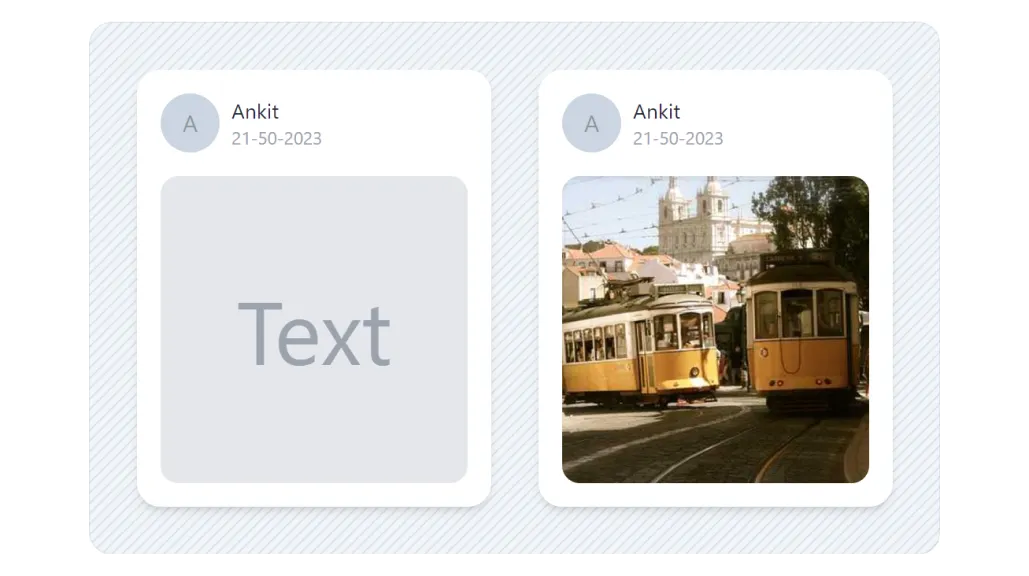
Other examples of reusable components can be Navigation Menus, Modal Dialogs, User Profiles, Product Cards, etc.
2. Conditional Rendering
There are scenarios where different content needs to be rendered based on conditions such as authentication state.
Let's explore a practical example of a login scenario. First, we create a ConditionalComponent that includes a condition, _isNotLoggedIn, to represent the login state.
ConditionalComponent
@Component({
  selector: 'app-conditional',
  templateUrl: './conditional.component.html',
  styleUrls: ['./conditional.component.scss']
})
export class ConditionalComponent {

  email?: string;
  password?: string;

  _isNotLoggedIn = true;

  onSubmit() {
    this.email =""
    this.password=""
    this._isNotLoggedIn = false;
  }

  logout(){
    this._isNotLoggedIn = true;
  }
}
Next, in the conditional.component.html file, we will use ng-container to handle the conditional rendering based on the _isNotLoggedIn condition. If the user is not logged in, the login form is displayed; otherwise, the success page component, <app-success-template> inside the #successTemplate, is shown.
conditional.component.html
<div class="tw-flex tw-flex-col tw-h-screen tw-items-center tw-justify-center">

    <div class="backdrop tw-flex tw-flex-col max-sm:tw-items-center tw-gap-8  tw-px-8 tw-py-8 tw-rounded-2xl ">

        <div class="card-area tw-bg-white  tw-p-8 tw-rounded-xl tw-shadow-md tw-flex tw-flex-col tw-items-center  tw-justify-center ">

            <ng-container *ngIf="_isNotLoggedIn; else successTemplate">

                <form class="tw-gap-4 tw-flex tw-flex-col tw-items-center" (ngSubmit)="onSubmit()"
                    #loginForm="ngForm">
                    <h2>Login</h2>
                    <div class="tw-bg-white tw-flex tw-flex-col tw-gap-2">
                        <label class="tw-text-slate-500 tw-text-sm" for="email">Email</label>
                        <input
                            class="tw-rounded-md tw-w-full tw-bg-transparent tw-outline tw-outline-1 tw-p-2 tw-outline-slate-400 focus-visible:tw-outline-slate-500"
                            type="email" name="email" [(ngModel)]="email" required>
                    </div>
                    <div class="tw-bg-white tw-flex tw-flex-col tw-gap-2">
                        <label class="tw-text-slate-500 tw-text-sm" for="password">Password</label>
                        <input
                            class="tw-rounded-md tw-w-full tw-bg-transparent tw-outline tw-outline-1 tw-p-2 tw-outline-slate-400 focus-visible:tw-outline-slate-500"
                            type="password" name="password" [(ngModel)]="password" required>
                    </div>
                    <button
                        class="tw-px-4 tw-py-2 tw-rounded-md tw-bg-zinc-600 tw-text-white disabled:tw-bg-zinc-200 disabled:tw-text-zinc-400"
                        type="submit" [disabled]="!loginForm.form.valid">Submit</button>
                </form>

            </ng-container>

        </div>

    </div>
</div>

<ng-template #successTemplate>
    <app-success-template (logout)="logout()"></app-success-template>
</ng-template>
By using the else keyword and specifying the success template as the fallback option, we ensure that the appropriate content is rendered based on the condition in the *ngIf directive.
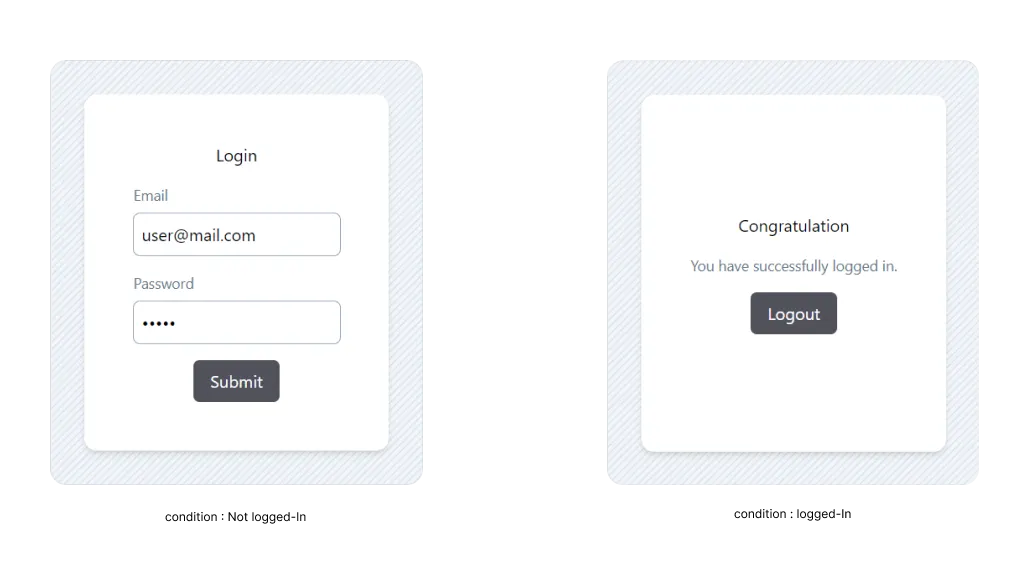
Other examples of Conditional rendering can be User Onboarding, Error Handling, Form Validation, etc.
3. Dynamic Content
There are often cases where we need to present content that varies based on factors like list items or application state.
Consider an application that displays a list of items, such as images, text, or input fields. Using ng-template, we can define templates that determine the layout and structure of each item type. This allows us to have a consistent design while accommodating different types of dynamic content.
Let create DynamicCardComponent that receives data from its parent component and renders a dynamic template based on that.
DynamicCardComponent
@Component({
  selector: 'app-dynamic-card',
  templateUrl: './dynamic-card.component.html',
  styleUrls: ['./dynamic-card.component.scss']
})
export class DynamicCardComponent {

  @Input() data?: ModelDynamicItem
  @Input() template?: TemplateRef<HTMLElement>

}

/* models */

export interface ModelDynamicItem {
    header: string
    value: any
    valueType: string
}

export class DynamicTemplate {
    value: any
}
In the dynamic-card.component.html file, we use template with ngTemplateOutlet.
dynamic-card.component.html
<div class=" tw-flex min-width  tw-flex-col tw-gap-1 tw-px-4 tw-py-4 tw-rounded-2xl hover:tw-shadow-lg tw-shadow-md tw-bg-white">

    <div class="tw-flex tw-flex-row tw-items-center tw-gap-2">
        <h4 class="tw-text-sm tw-text-slate-700">{{data?.header}}</h4>
    </div>

    <div class="tw-p-0.5"></div>

    <ng-container *ngIf="template">
        <ng-container *ngTemplateOutlet="template; context:{$implicit: data?.value}">
        </ng-container>
    </ng-container>
</div>
Next, we create TemplateImageComponent to handle image-based content. This will be used if the list item is of valueType image.
TemplateImageComponent
@Component({
  selector: 'app-template-image',
  template:  `<div class="tw-aspect-video tw-h-52 tw-flex tw-justify-center tw-items-center">
    <img class="tw-object-cover tw-rounded-xl tw-h-full" [src]="value"/>
</div>`,
  styleUrls: ['./template-image.component.scss']
})
export class TemplateImageComponent {
  ngOnInit(): void {
    console.log("value: ", this.value)
  }

  @Input() value?: any

}
Similarly, we create TemplateInputComponent and TemplateTextComponent to handle input and text-based templates, respectively.
In the, DynamicComponent, we define the list data with various value types such as text, input, and image.
DynamicComponent
@Component({
  selector: 'app-dynamic',
  templateUrl: './dynamic.component.html',
  styleUrls: ['./dynamic.component.scss']
})
export class DynamicComponent {

   _list: ModelDynamicItem[] = [
    {
      header:"Normal Text",
      valueType:"text",
      value:"template having normal text."
    },
    {
      header:"Input Text",
      valueType:"input",
      value:"input text inside template"
    },
    {
      header:"Image Placeholder",
      valueType:"image",
      value:"https://picsum.photos/500"
    }
  ]

_onInputChange($event: any) {
    console.log("$event: ", $event)
 }

}
To bring everything together, we create the dynamic.component.html file and use all the templates we created above.
Using Templates
<div class="tw-flex tw-flex-col tw-h-screen tw-items-center tw-justify-center">

    <div class="backdrop tw-flex tw-flex-col max-sm:tw-items-center tw-gap-4 tw-px-8 tw-py-8 tw-rounded-2xl ">

        <ng-container *ngFor="let item of _list">
            <ng-container [ngSwitch]="item.valueType">
                <app-dynamic-card *ngSwitchCase="'text'" [data]="item" [template]="textTemplate"></app-dynamic-card>
                <app-dynamic-card *ngSwitchCase="'input'" [data]="item" [template]="inputTemplate"></app-dynamic-card>
                <app-dynamic-card *ngSwitchCase="'image'" [data]="item" [template]="imageTemplate"></app-dynamic-card>
                <app-dynamic-card *ngSwitchDefault [data]="item" ></app-dynamic-card>

            </ng-container>
        </ng-container>
    </div>
</div>

<ng-template #textTemplate let-value>
    <app-template-text [value]="value"></app-template-text>
 </ng-template>

 <ng-template #inputTemplate let-value>
    <app-template-input [value]="value" (valueChange)="_onInputChange($event)"></app-template-input>
 </ng-template>

 <ng-template #imageTemplate let-value>
    <app-template-image [value]="value" ></app-template-image>
 </ng-template>
As shown in the resulting output image, this successfully renders the list with three different types of items: text, input, and image.
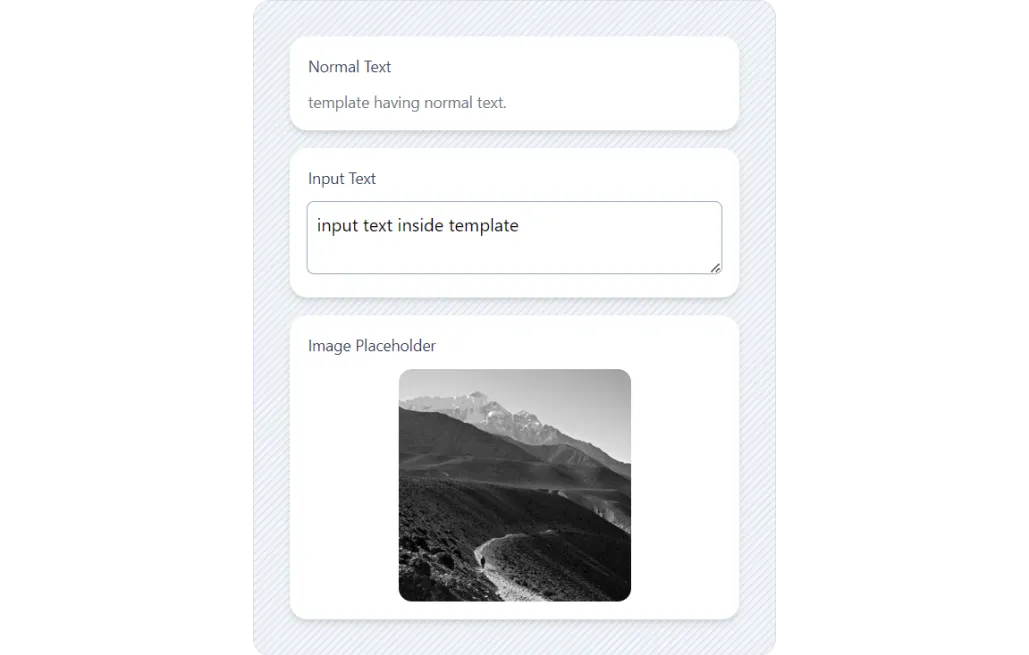
some real-world examples where ng-template and dynamic content rendering can be applied are Dashboard Widgets, Social Media Posts, Social Media Posts, etc.
4. Customizing Components
Next use case for *ngTemplateOutlet is making customizable components. Let's create an Expansion Panel, and then we will customize it. By utilizing templates, we can easily customize the body content of the panel to meet specific requirements.
First, we create CustomExpansionPanelComponent and define the animation for the toggle.
@Component({
  selector: 'app-custom-expansion-panel',
  templateUrl: './custom-expansion-panel.component.html',
  styleUrls: ['./custom-expansion-panel.component.scss'],
  animations: [
    trigger('expandCollapse', [
      state(
        'collapsed',
        style({ height: '0', paddingTop: '0', paddingBottom: '0', opacity: 0 })
      ),
      state(
        'expanded',
        style({ height: '*', paddingTop: '*', paddingBottom: '*', opacity: 1 })
      ),
      transition('collapsed <=> expanded', animate('250ms ease-out'))
    ])
  ]
})
export class CustomExpansionPanelComponent{


  isExpanded = false;

  isCollapsing = false;

  @ContentChild(ExpansionPanelHeaderDirective, { read: TemplateRef }) headerContent?: any;
  @ContentChild(ExpansionPanelHeaderTemplateDirective, { read: TemplateRef }) headerTemplate?: any;

  @ContentChild(ExpansionPanelBodyDirective, { read: TemplateRef }) bodyConent?: any;
  @ContentChild(ExpansionPanelBodyTemplateDirective, { read: TemplateRef }) bodyTemplate?: any;

  togglePanel() {
    if (this.isExpanded && !this.isCollapsing) {
      this.isCollapsing = true
    } else {
      this.isExpanded = !this.isExpanded;
      this.isCollapsing = false
    }
  }

  onAnimationEnd($event: AnimationEvent) {

    if ($event.toState === "collapsed") {
      this.isCollapsing = false
      this.isExpanded = false
    }
  }

}
Additionally, we create four different directives for the header content, body content, header template, and body template.
@Directive({
  selector: '[bodyTemplateDef]'
})
export class ExpansionPanelBodyTemplateDirective {
}

@Directive({
  selector: '[body]'
})
export class ExpansionPanelBodyDirective {
}

@Directive({
  selector: '[headerTemplateDef]'
})
export class ExpansionPanelHeaderTemplateDirective {
}

@Directive({
  selector: '[header]'
})
export class ExpansionPanelHeaderDirective {
}
Next, we define the default template for the header and body of the panel in custom-expansion-panel.component.html. This template will be used when no custom templates are provided.
<div class="panel tw-w-96" [ngClass]="{'expanded': isExpanded}" (click)="togglePanel()">
    <ng-container
        *ngTemplateOutlet="headerTemplate || defaultHeaderTemplate; context:{$implicit: headerContent , isExpanded: isExpanded}">
    </ng-container>

    <div class="tw-mt-2" [@expandCollapse]="isExpanded && !isCollapsing ? 'expanded' : 'collapsed'"
        (@expandCollapse.done)="onAnimationEnd($event)">

        <ng-container class="panel-body" *ngIf="isExpanded">
            <ng-container
                *ngTemplateOutlet="bodyTemplate || defaultPanelTemplate; context:{$implicit: bodyConent}"></ng-container>
        </ng-container>
    </div>

</div>


<ng-template #defaultHeaderTemplate let-isExpanded="isExpanded" let-headerContent>

    <div class=" tw-flex tw-cursor-pointer tw-flex-row tw-bg-slate-50 tw-rounded-md tw-p-4">
        <div class="tw-flex tw-flex-auto">
            <ng-container *ngTemplateOutlet="headerContent"></ng-container>
        </div>
        <span class="material-icons">{{ isExpanded ? 'expand_less' : 'expand_more' }}</span>
    </div>

</ng-template>

<ng-template #defaultPanelTemplate let-bodyConent>
    <div class="tw-bg-slate-50 tw-rounded-md tw-p-4 ">
        <ng-container *ngTemplateOutlet="bodyConent"></ng-container>
    </div>
</ng-template>
now we use the CustomExpansionPanelComponent in two scenarios: one without custom templates and another with custom templates. In custom-test.component.html , we assign content to the header and body using the respective directive selectors.
<div class="tw-flex tw-flex-col tw-h-screen tw-items-center tw-justify-center">


    <div
        class="backdrop tw-flex tw-flex-row xs max-sm:tw-flex-col max-sm:tw-items-center tw-gap-8  tw-px-8 tw-py-8 tw-rounded-2xl ">

        <div class="tw-flex tw-flex-col tw-gap-8">


            <app-custom-expansion-panel>
                <h4 *header class="tw-text-sm tw-font-medium">This is Header Header</h4>
                <div *body class=" tw-flex tw-flex-row tw-gap-4">
                    <img class="tw-object-cover tw-aspect-square tw-h-12 tw-rounded-md"
                        src="https://picsum.photos/500" />

                    <p class="tw-text-sm tw-text-stone-700">Occaecat aute, but quam, for doloremque, and sequi minim.
                        Nequeporro lorem doloremque officia.
                        Occaecat. </p>
                </div>
            </app-custom-expansion-panel>


            <app-custom-expansion-panel>

                <h4 *header class="tw-text-sm tw-font-medium">This is Header Header</h4>
                <div *body class=" tw-flex tw-flex-row tw-gap-4">
                    <img class="tw-object-cover tw-aspect-square tw-h-12 tw-rounded-md"
                        src="https://picsum.photos/500" />

                    <p class="tw-text-sm tw-text-stone-700">Occaecat aute, but quam, for doloremque, and sequi minim.
                        Nequeporro lorem doloremque officia.
                        Occaecat. </p>
                </div>


                <!-- custom template -->
                <ng-container *headerTemplateDef="let headerContent; let expanded=isExpanded">

                    <div class="tw-transition tw-cursor-pointer tw-flex tw-flex-row  tw-rounded-md tw-p-4"
                        [ngClass]="{'tw-bg-blue-600 tw-text-white tw-shadow-xl':expanded,
                    'tw-bg-slate-50 tw-text-stone-900':!expanded }">
                        <div class="tw-flex tw-flex-auto">
                            <ng-container *ngTemplateOutlet="headerContent"></ng-container>

                        </div>
                        <span class="tw-transition material-icons tw-rotate-0 "
                            [ngClass]="{'tw-rotate-180':expanded }">expand_more</span>

                    </div>
                </ng-container>

                <ng-container *bodyTemplateDef="let bodyConent">
                    <div class="tw-bg-white tw-border-blue-600 tw-border-2 tw-rounded-md tw-p-4 tw-shadow-xl">

                        <ng-container *ngTemplateOutlet="bodyConent"></ng-container>
                    </div>
                </ng-container>
            </app-custom-expansion-panel>

        </div>

    </div>
</div>
In the second <app-custom-expansion-panel> instance, we provide a custom template for the header and body using the headerTemplateDef and bodyTemplateDef selectors.
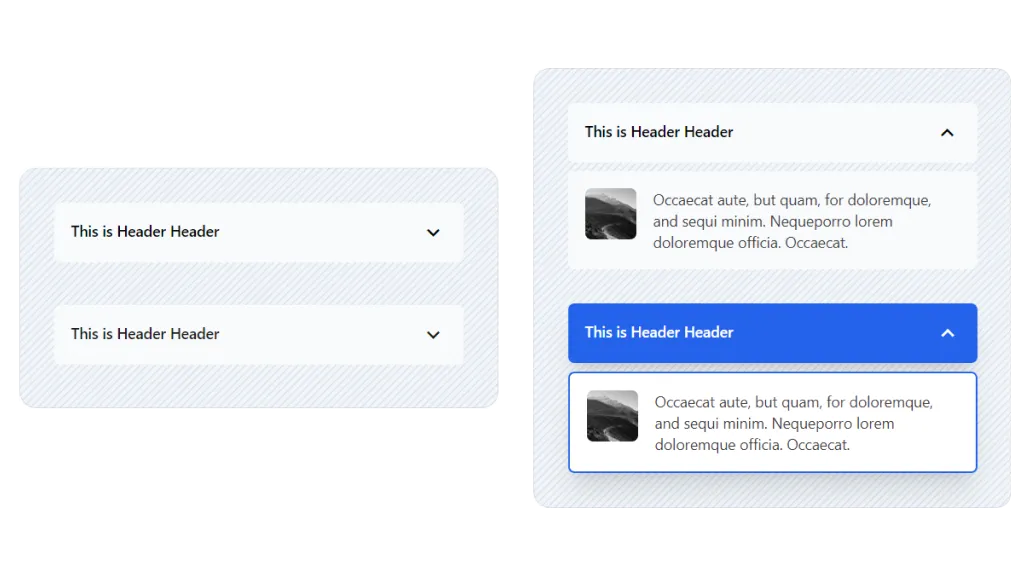
As shown in the image, the components are successfully customized using the provided templates in the second scenario.
This approach enables developers to create highly customizable components Some real-world examples are Customizable Angular Material components, Configurable Dashboard Widget Component, Dynamic Table Component with Customizable Columns, etc.
Conclusion
ng-template is a powerful Angular feature that enables reusable, dynamic, and customizable UI components. Mastering it can significantly improve code quality, maintainability, and developer productivity.
Helpful links
- More on Dynamic Components: Blog by Mustapha
- Understand ng-template and ng-content: Blog by Prateek
- See the preview at Code-Sandbox
GitHub - nirajprakash/ng-template-usecase
Examples of ng-template use cases in Angular
GitHub